How to Reset Password in Perfect SMM Panel – Full Step-by-Step Guide (2025 Updated)
Losing access to your Perfect SMM panel admin area is stressful, especially when orders are coming in and your business is on the line. The good news? You don’t need to contact the developer, wait days for support, or reinstall the entire script.
You can reset the admin password yourself in under 10 minutes using only your hosting control panel and phpMyAdmin.
This method works perfectly in 2025 on Hostinger, Namecheap, HostGator, Bluehost, A2 Hosting, or any host that provides cPanel/hPanel + phpMyAdmin access.
Let’s get you back in – fast and safely.
Step 1: Log into Your Hosting Account
Open your hosting provider and log into the control panel:
- Hostinger → hPanel
- Namecheap/HostGator/Bluehost/A2 Hosting → cPanel
- Any other host → look for “File Manager” and “phpMyAdmin”
Step 2: Find Your Database Name
- Open File Manager
- Go to your domain folder (usually public_html)
- Navigate to app → config.php
- Open the file and look for the database name:
PHP
$db_name = "your_database_name_here";
or
PHP
define('DB_NAME', 'your_database_name_here');
Copy that database name – you’ll need it in the next step.
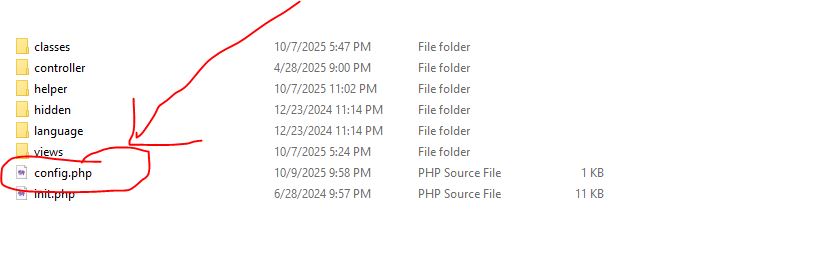
image showing the config file in file manager
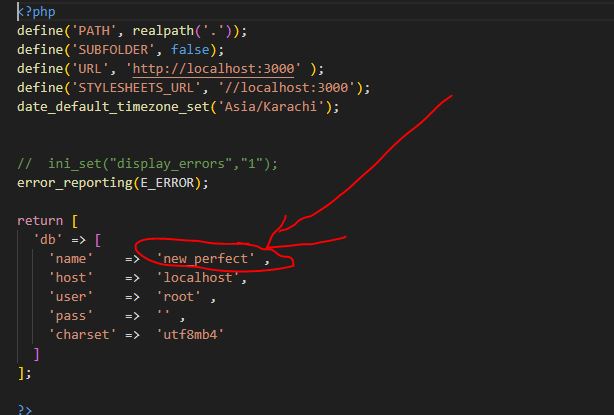
image showing the database name in file manager
Step 3: Open phpMyAdmin
- In Hostinger: hPanel → Databases → Manage → phpMyAdmin (select your database)
- In cPanel: Search for “phpMyAdmin” → click it → select your database from the left sidebar
Step 4: Locate the “admins” Table
In the left sidebar, find and click the table named admins (sometimes called admin or users – in Perfect SMM it’s almost always admins).
Click Browse. You’ll see a row with your admin account. The password column will show a long 32-character string – that’s your current hashed password.
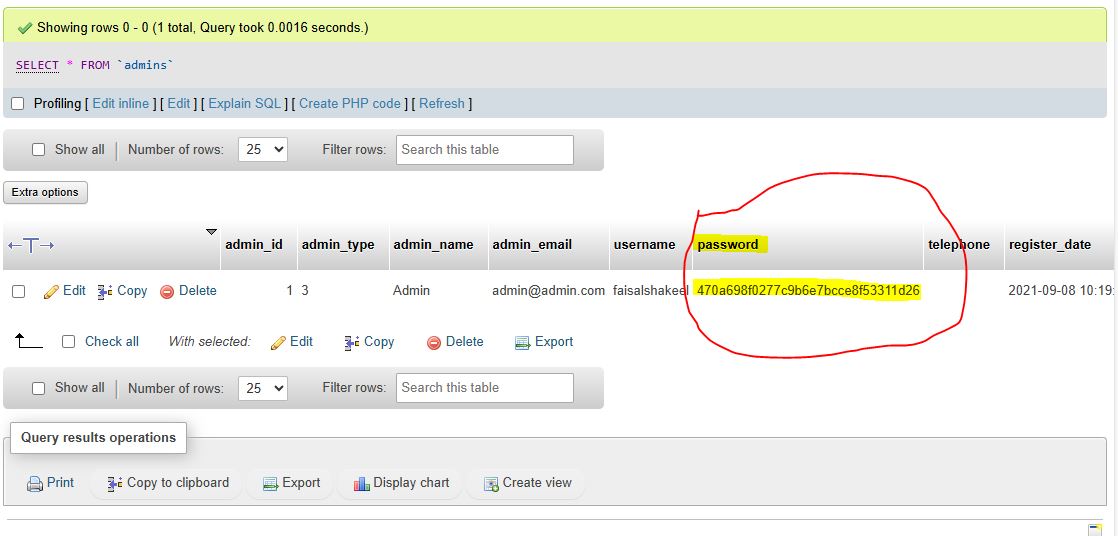
What is a Hashed Password?
Your real password is never stored. Instead, the script converts it into a one-way encrypted string using MD5 (the most common hashing method in Perfect SMM). That’s why you can’t recover the old password – but you can replace the hash with a new one.
Step 5: Confirm Your Script Uses MD5 (99% Do)
Just to be 100% sure:
- Go back to File Manager
- Open: app → controllers → admin → login.php
- Press Ctrl + F and search for md5(
You’ll see something like:
PHP
$pass = md5($pass);
or
PHP
$password = md5($_POST['password']);
If you see md5( → you’re good to go with MD5.
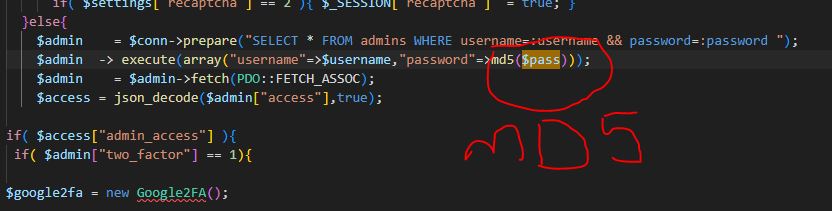
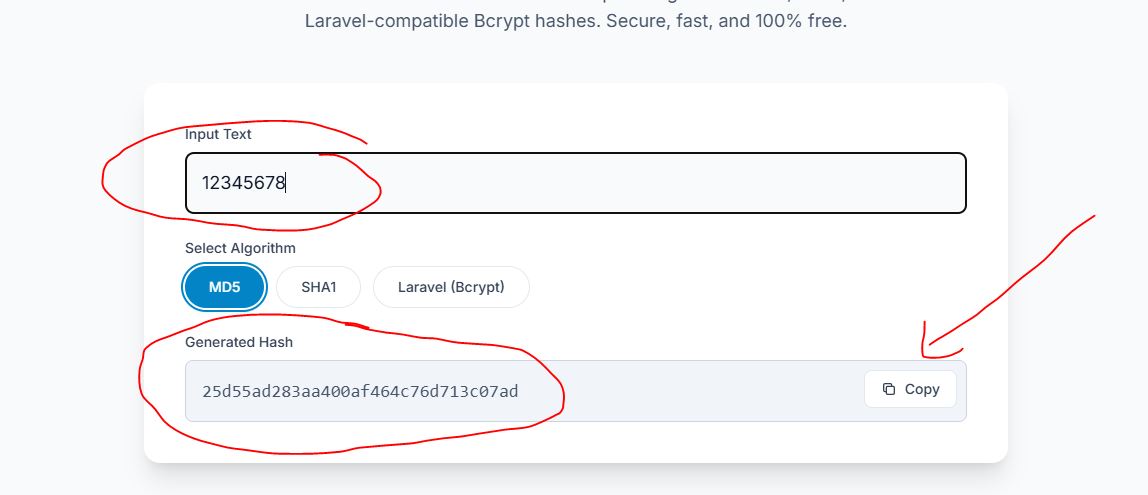
Step 6: Generate a New MD5 Hash
Go to this trusted and safe online MD5 generator:
- Type your new strong password (example: MyPanel2025!@#)
- Click “Generate MD5”
- Copy the 32-character hash
Step 7: Replace the Old Hash
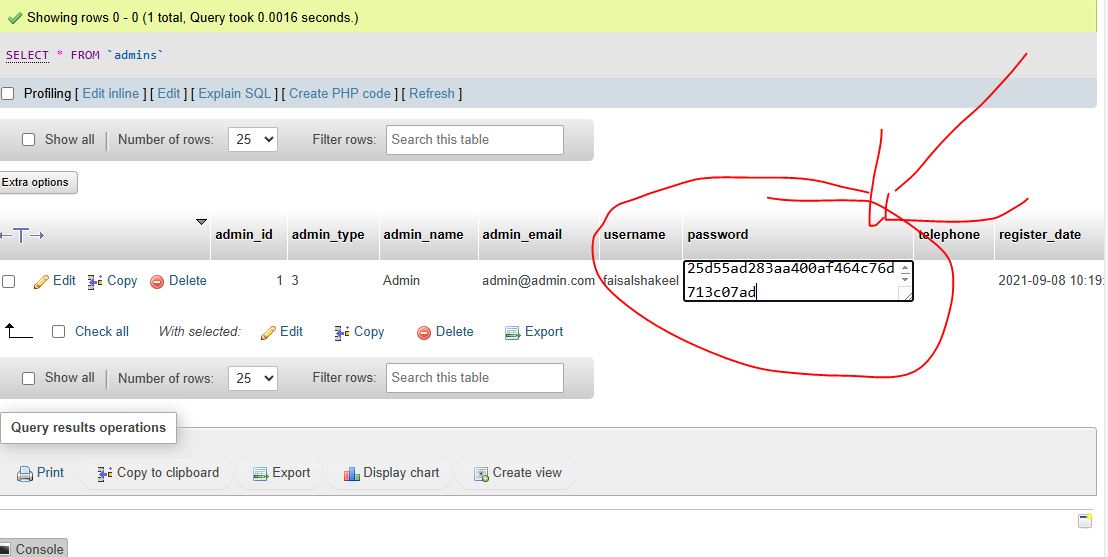
Back in phpMyAdmin:
- In the admins table → click Edit on the admin row (usually ID 1)
- Delete the old value in the password field
- Paste your new MD5 hash
- Click Go / Save
Done! Your password has been reset.
Step 8: Log In With Your New Password
Go to your panel login page:
- yoursite.com/admin
- or yoursite.com/login
- or yoursite.com/index.php/admin
Username: admin (or your previous email/username)
Password: The exact password you typed on fbshash.online (e.g., 12345678)
You’re back in control!.
Security Tips (Do This Immediately After Logging In)
- Go to your profile and change the password normally through the panel
- Use a strong, unique password (15+ characters, numbers, symbols)
- Enable 2FA if your version supports it
- Always backup your database before making changes (phpMyAdmin → Export → Quick)
This method works on all current versions of Perfect SMM Panel in 2025 – including the latest updates.
If you get stuck on any step, drop a comment below and I’ll reply within hours.
You’ve got this! Now go back to growing your SMM business
Save this post – you’ll thank yourself later!